You have lost your photos; you have installed recovery software, and now the real question: how long is the data recovery process going to take? It is a fair thing to ask while your files hang in the balance. The honest answer is that SD card recovery time varies from a few minutes to an hour or more, depending on several factors you can actually control.
Here is what determines scan time – and how to speed the whole process up.
Factors That Affect Recovery Time
These are the variables that decide how long a scan takes:
· Card capacity. A 256GB card takes longer to scan than a 32GB card – there is simply more data to examine.
· Speed class. Faster cards (U3, V30, V90) read quicker during scanning. An old, slow card drags the whole process down.
· Amount of data. A full card has more files to index and preview than a half-empty one.
· Damage level. Corrupted or formatted cards require deeper sector-level scanning, which is slower than a simple deletion recovery.
· Scan mode. Quick scans are fast; deep scans are thorough – and much slower.
It also depends on the computer doing the scanning. A modern machine with a fast USB port moves data several times faster than an older laptop with a slow card slot, so if recovery is urgent, run the scan on the fastest computer you can use.
Typical Timeframes
As a rough guide:
· Quick scan (recent deletions): 3-10 minutes for most cards.
· Deep scan (formatted, corrupted, or fragmented): 20-60 minutes for typical cards, longer for large or heavily damaged ones.
· Enhanced Recovery (4K/8K fragmented video): can exceed an hour, because the tool has to collect and match video fragments across the whole card.
These are estimates, not promises – the real number depends on the factors above. It also depends on what kind of loss you are dealing with. A single deleted file can be found in minutes, while a card that was formatted days ago needs a full rebuild of its file structure – so two identical cards can take very different amounts of time depending on how the data was lost.
How Recoverit Speeds Up the Process
Wondershare Recoverit is built to reduce scan time where it counts. Its AI-accelerated scanning maps device-specific file patterns intelligently instead of brute-forcing every sector, so common recoveries – recent deletions, small cards – finish quickly. It also lets you pause or stop the scan at any moment, which matters more than most people realize: if you spot your files halfway through, you do not have to wait for the full scan to finish.
What the Progress Display Tells You
A scan’s progress screen is not just a countdown – it is a window into what the tool is doing. When the counter climbs quickly with a large file count, the scan is reading the file system and finding entries fast. When it slows to a crawl, the tool has moved into raw sector reading, which is normal for deep scans. If the display lets you preview results while scanning – as Recoverit does – you can watch for your actual files and stop the moment they appear, even if the overall counter says the scan is only half done.
Tips to Speed Up SD Card Recovery
· Scan only the right device. If you know which card held your photos, scan that card – not the whole computer.
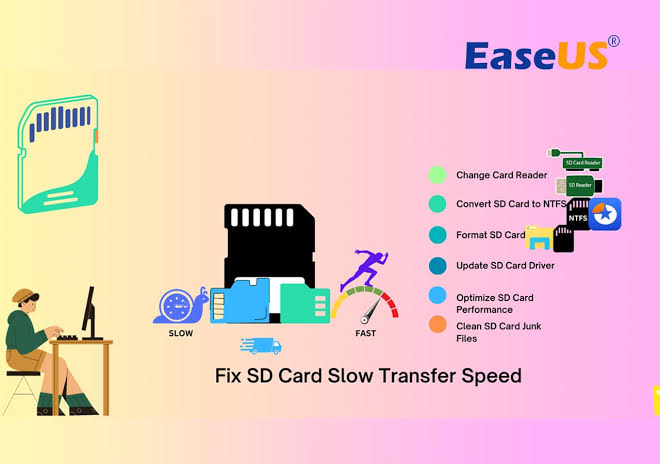
· Use a fast card reader. A USB 3.0 reader can cut scan time significantly compared to an old USB 2.0 one.
· Stop the scan as soon as you find your files. Recoverit shows results while scanning; grab what you need and stop.
· Use filters. Once results appear, filter by file type or time to focus on what you actually need.
· Preview sparingly. Previewing is fast, but previewing hundreds of videos adds up; preview the files you plan to recover.
Two more habits shorten the wait. First, close other programs that hammer the disk while the scan runs – background syncs and downloads compete with the scan for bandwidth. Second, if you know roughly when the files were lost, use the time filter during the scan to narrow the search window; a scan that only looks at recent data finishes much faster than one that rebuilds everything.
What Takes the Longest
The slowest recovery scenarios are usually the most important ones:
- Fragmented 4K/8K video. Large videos stored in scattered fragments need Enhanced Recovery, which scans, collects, and matches fragments – it is worth the wait for irreplaceable footage.
- Formatted or corrupted cards. Deep scans read the raw sectors to rebuild file patterns, which is inherently slower than a quick scan – but it is also how you get files back from cards that look empty.
If your card recovery runs on a Windows machine, the Windows version of Recoverit keeps the same fast workflow; on a Mac, the Mac version is built for the same three-step process. Whichever system you use, the time-saving habits above – fast reader, right device, early stop – apply identically.
Conclusion
SD card recovery time is not a mystery – it is shaped by card size, damage level, and scan mode, and you control most of those variables. Use a fast reader, scan the right device, stop early when you find your files, and reserve deep scans for the cases that need them. Wondershare Recoverit keeps the process as fast as it can be with AI-accelerated scanning and pause-anytime control, so the waiting is minimal – and the outcome is worth it. The time a recovery takes is the price of getting your files back; compared to the files themselves, it is almost always a bargain.